Inspection Task Groups
Organize and manage quality control inspection operations through structured task groups and workflows.
Overview
Section titled “Overview”An Inspection Task Group is a set of inspection tasks — one per sub-bin — that are created and processed together. Each group carries:
- An external reference identifying the group.
- A category that classifies its purpose. Currently supported categories are Investigation and Count.
- A list of inspection tasks, one per sub-bin to be inspected.
Task groups can be created in two ways:
- From the Voyager WCS Admin UI — via the Create Inspection actions on the Bin Issues, Product Details, and Bin Detail pages (see Creating an Inspection Task Group from Admin below).
- From an external system (WMS → WCS) — by calling the Import Inspection Task Group API.
All created task groups appear on the Inspection Task Groups page, where operators can view status, filter by category, and drill into individual tasks.
Creating an Inspection Task Group from Admin
Section titled “Creating an Inspection Task Group from Admin”When an administrator triggers any of the “Create Inspection” actions in the Voyager WCS Admin UI, a popup appears asking to pick the inspection category — Investigation or Count — before the task group is created. This applies to all three pages that create inspection tasks: Bin Issues, Product Details, and Bin Detail.
- Open one of the three admin pages that create inspection tasks:
- Bin Issues — via the “Page Actions” menu on the table.
- Product Details — via the Create Inspection button in the Locations table header.
- Bin Detail — via the Create Inspection badge on the bin summary card.
- Click the relevant “Create Inspection” action.
- A popup titled Select Inspection Category appears with a dropdown. The Submit button stays disabled until you pick a value.
- Pick either Investigation or Count from the dropdown, then click Submit.
- The task group is created with the category you chose and appears on the Inspection Task Groups page.
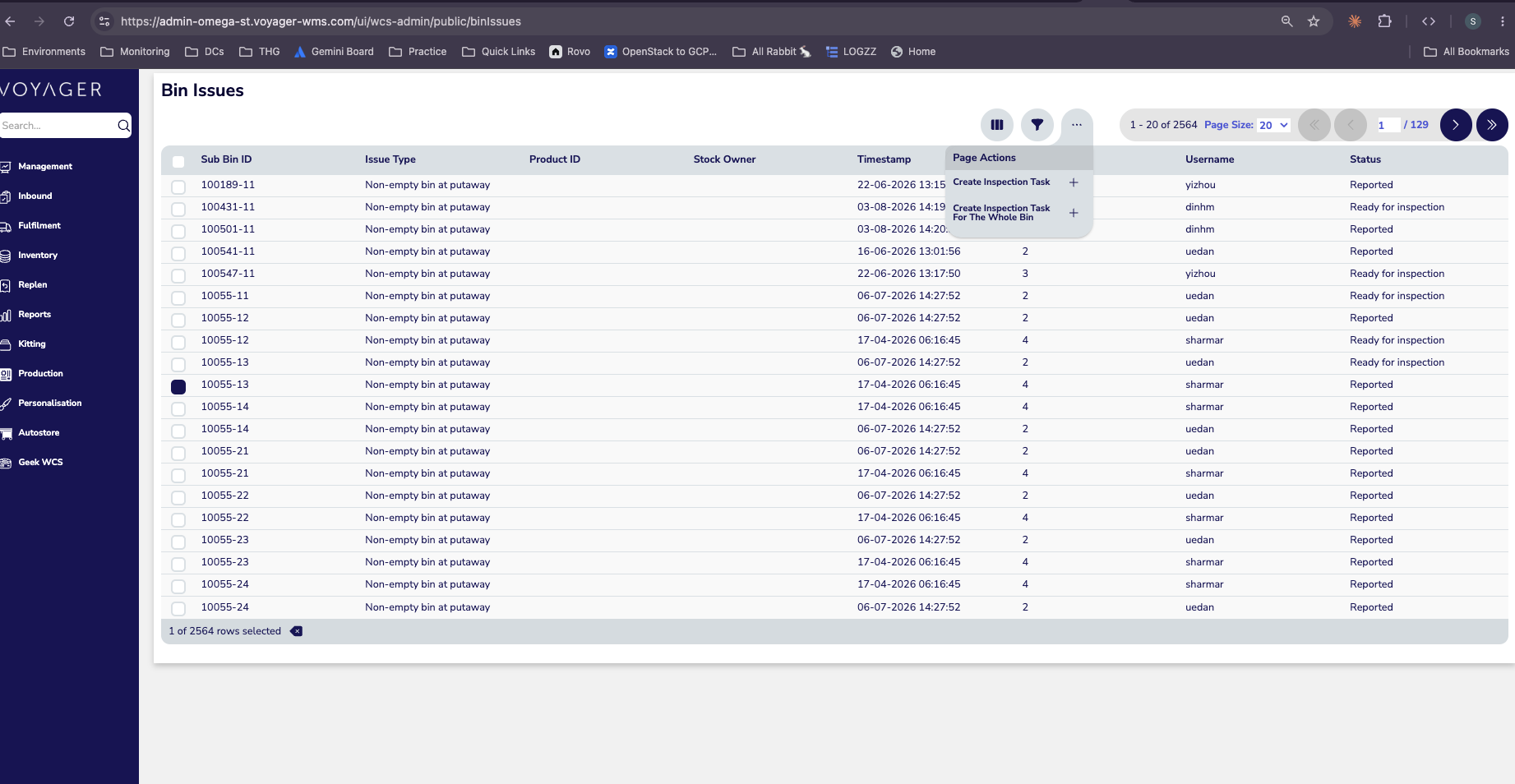 Figure 1 — Bin Issues page, with the “Page Actions” menu open.
The popup
Section titled “The popup”The popup appears immediately after you click any of the three “Create Inspection” actions. It has a single dropdown, a Cancel button, and a Submit button.
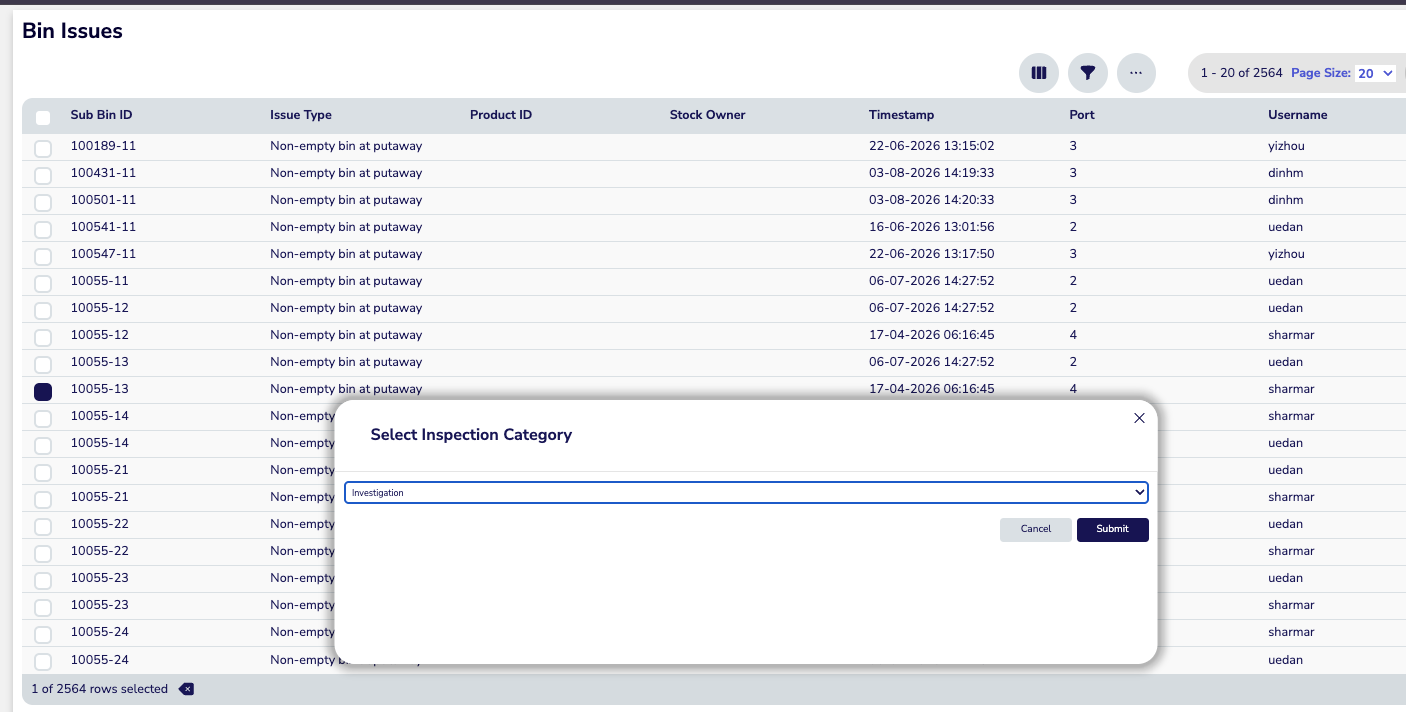 Figure 2 — The popup with a category selected. Submit is enabled only after a choice is made.
The same popup on the other two pages
Section titled “The same popup on the other two pages”On the Product Details and Bin Detail pages, you click the existing trigger and the same popup appears.
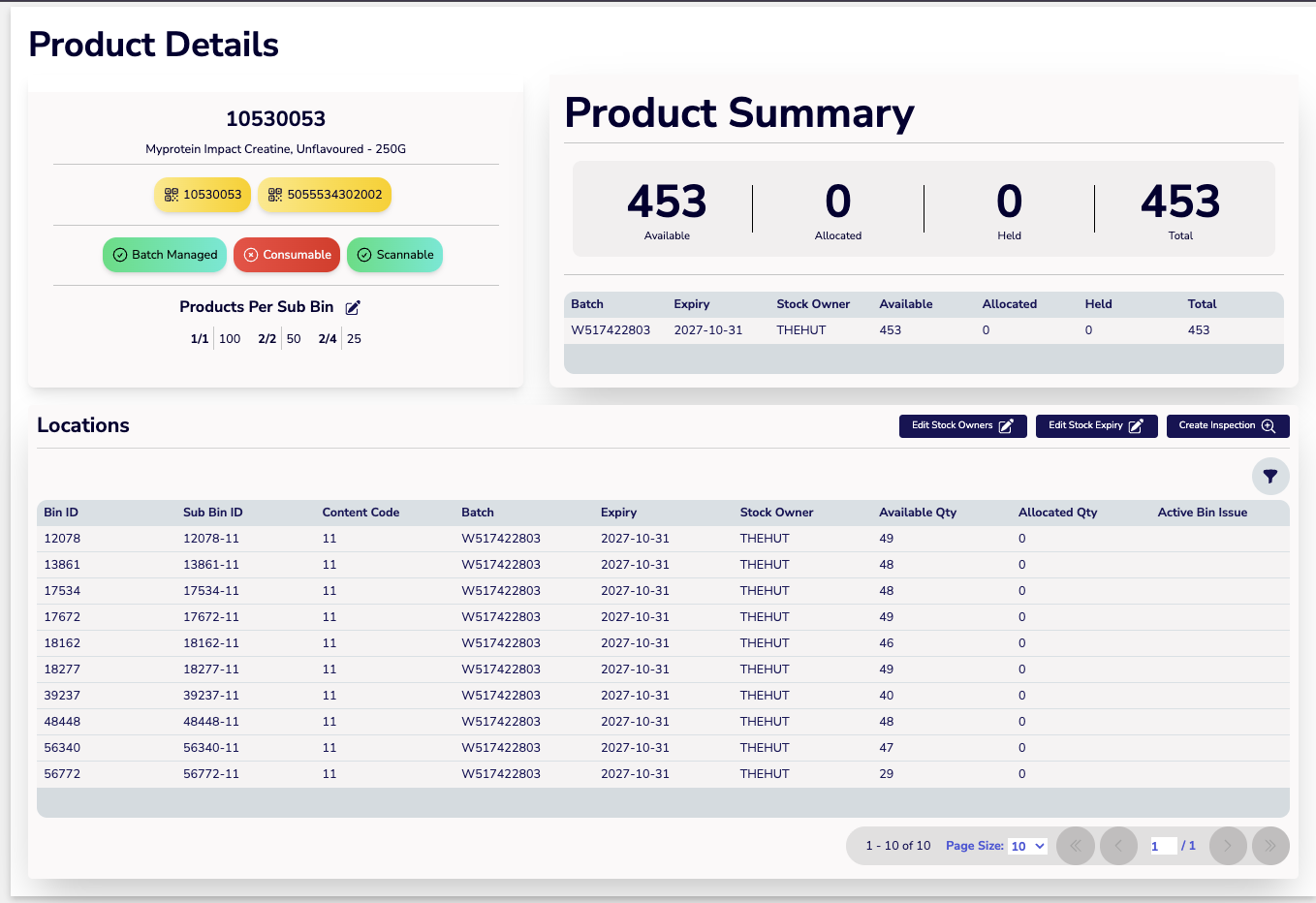 Figure 3 — Product Details page. Click Create Inspection (top-right of the Locations table).
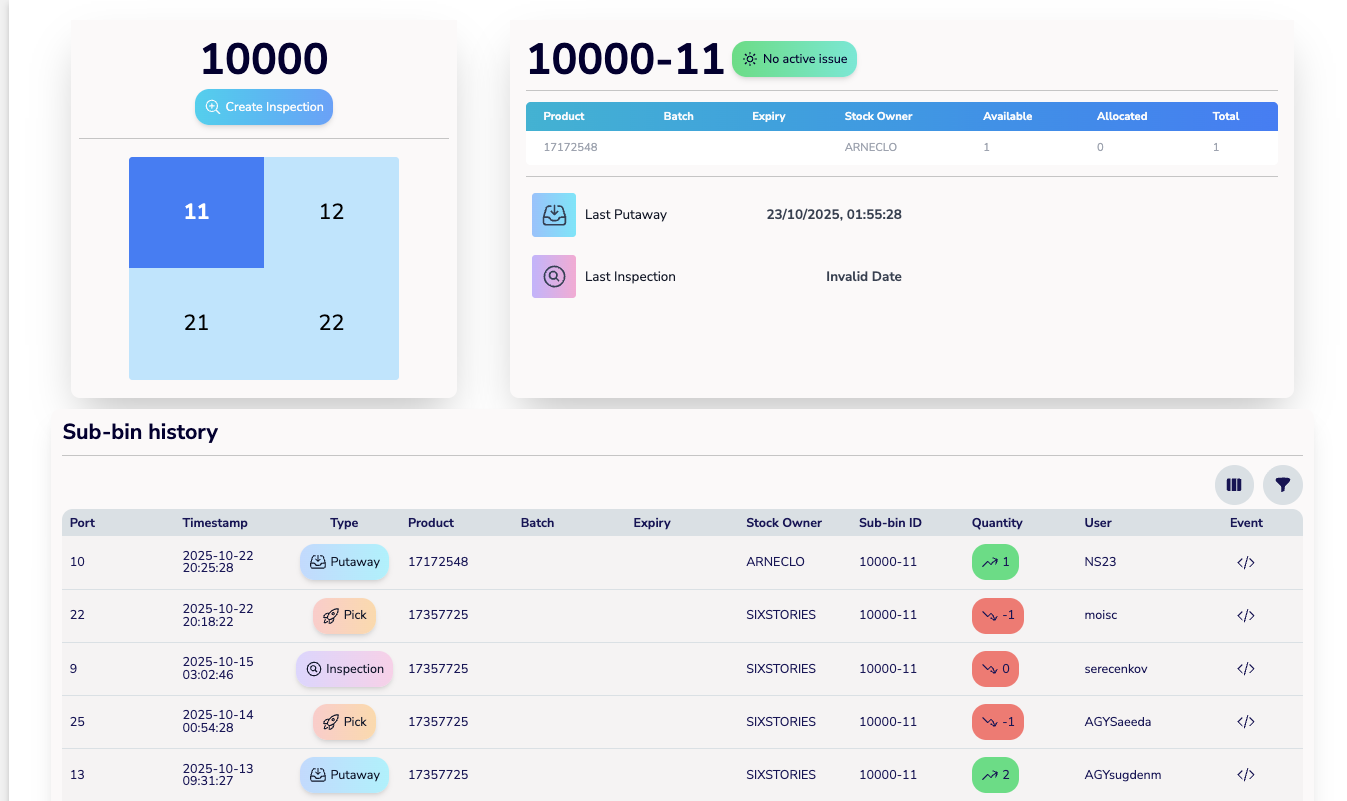 Figure 4 — Bin Detail page. Click the Create Inspection badge on the bin summary card.
Confirming the category on the Inspection Task Groups page
Section titled “Confirming the category on the Inspection Task Groups page”The new task group appears on the Inspection Task Groups page under the Category column with the value you selected in the popup — Investigation or Count.
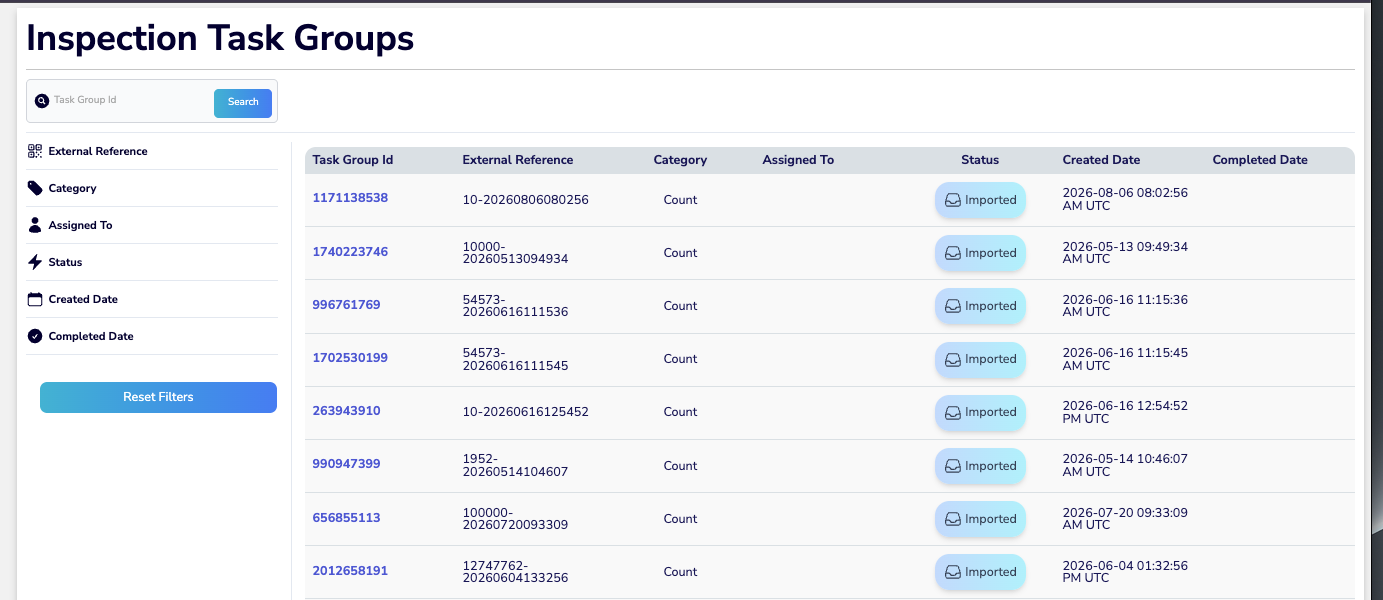 Figure 5 — Inspection Task Groups page. The Category column reflects the choice made at creation.